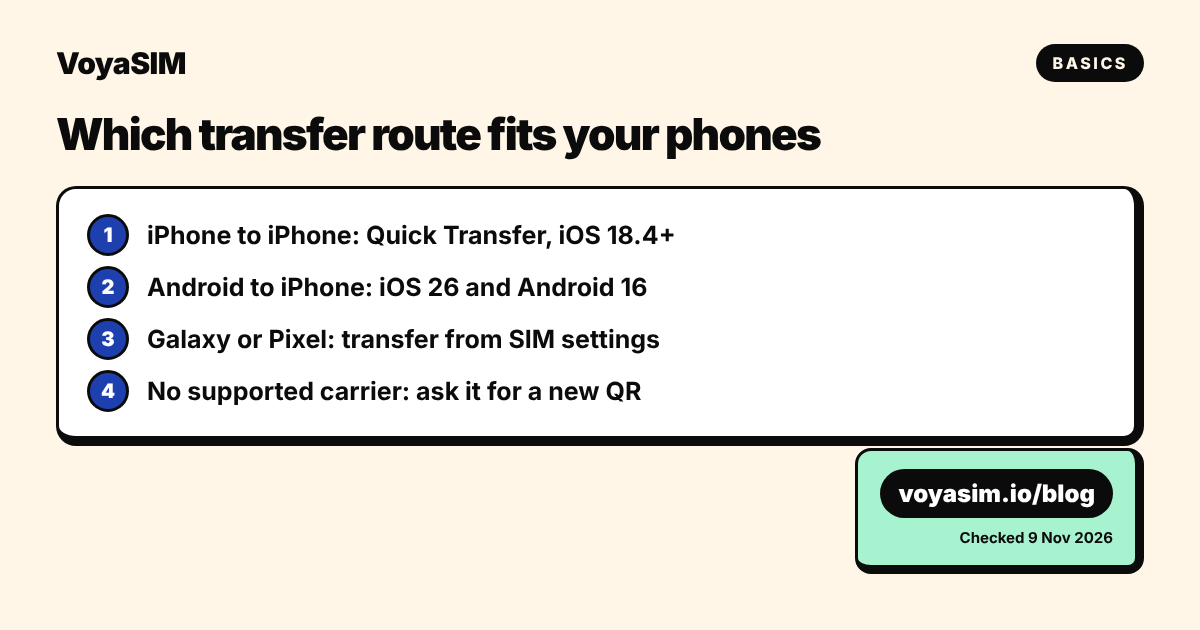
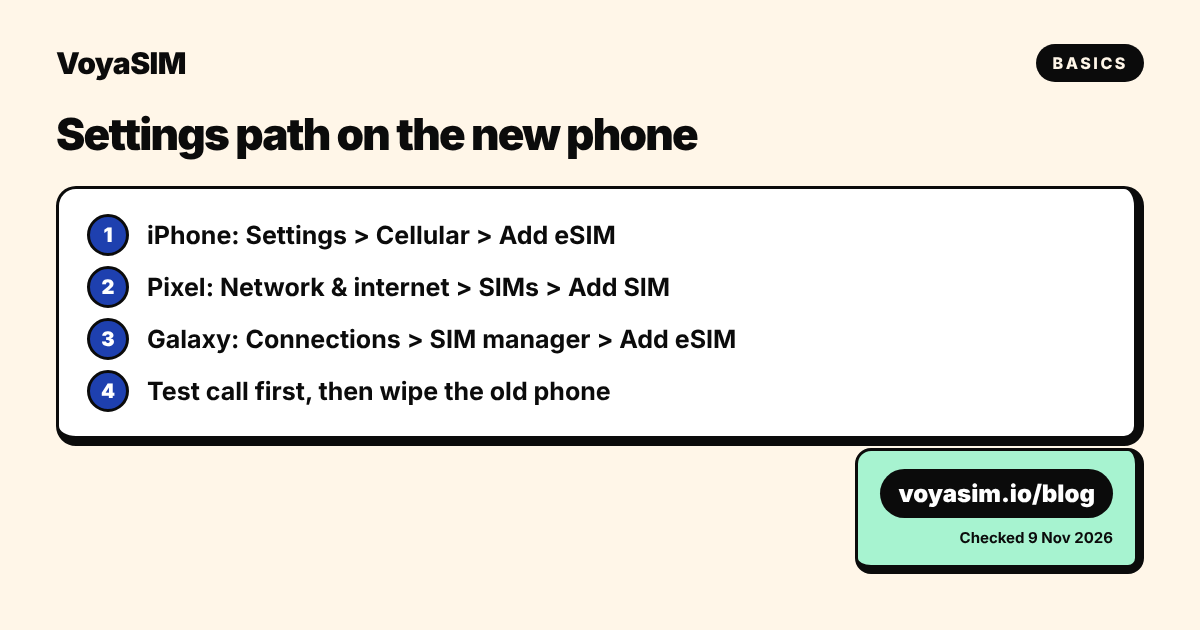
Start on the new phone: Settings > Cellular > Add eSIM on iPhone, Network & internet > SIMs > Add SIM on Pixel, or Connections > SIM manager > Add eSIM on Galaxy, then confirm on the old phone. iPhone to iPhone needs iOS 18.4; Android to iPhone needs iOS 26, Android 16 and a supported carrier. If your carrier is not supported, it issues a new eSIM instead. Travel eSIMs cannot be transferred: install the QR code on the new phone.

The short answer: pick the route that matches your two phones
You move an eSIM to a new phone from the new phone's settings, with the old phone next to it, and only if your carrier supports that route. If it does not, your carrier sends a new eSIM (a QR code or an in-app activation) and the old one stops working. Here is the route for each pair of phones, checked on 9 November 2026 against Apple, Google and Samsung's own support pages.
| From → to | What it is called | Minimum software | Where to start (new phone) |
|---|---|---|---|
| iPhone → iPhone | eSIM Quick Transfer | iOS 18.4 on both, same Apple Account | Settings > Cellular > Add eSIM |
| Android → iPhone | Transfer from Android | iPhone 11 or later on iOS 26; Android 16 | Settings > Cellular > Add eSIM > Transfer from Android |
| Android → Pixel | Transfer SIM from another device | Android 12 on both, current Google Play services, screen lock set | Settings > Network & internet > SIMs > Add SIM |
| iPhone → Pixel | Transfer a SIM from another phone | iOS 26 on the iPhone | Settings > Network & internet > SIMs > Add SIM > iPhone |
| Galaxy/Android → Galaxy | eSIM Instant Transfer | Unlocked new phone, current software | Settings > Connections > SIM manager > Add eSIM |
| iPhone → Galaxy | Transfer SIM from iPhone | Current software on both, Wi-Fi and Bluetooth on | Settings > Connections > SIM manager > Add eSIM |
| Any other pair, or an unsupported carrier | Carrier reissue | None | Call or chat with your carrier, or use its app |
One rule holds on every route: when the eSIM activates on the new phone, the copy on the old phone deactivates. Apple states it for both iPhone and Android transfers, and an eSIM profile can only be live on one device at a time.
Travel eSIMs are the exception to all of the above. A data-only travel eSIM, including a VoyaSIM one, is installed once from its QR code and cannot be moved with these tools. If you have not installed it yet, scan the QR code with the new phone. If it is already on the old phone, see the edge-case section below.
Why a transfer needs your carrier's support
An eSIM is a profile that your carrier writes to a secure chip in the phone, and only the carrier can write a new copy. The "transfer" buttons on iPhone, Pixel and Galaxy do not copy the profile. They prove to the carrier that you hold the old phone, then ask the carrier to issue a fresh profile to the new phone and switch off the old one.
That is why each manufacturer publishes a carrier list, and why the lists differ:
- Android to iPhone (Apple, published 17 September 2026): in the USA, AT&T, Cricket, FirstNet, T-Mobile, Verizon and Xfinity Mobile; in the UK, EE; in Canada, Bell, Koodo, Lucky Mobile, Telus and Virgin Mobile; plus named carriers in Austria, Brazil, Czechia, France, Germany, Japan, Mexico, the Netherlands, Slovakia and Switzerland.
- iPhone to Pixel (Google): a similar list of 28 carriers, including AT&T, Verizon, T-Mobile, Google Fi, EE, Orange France, SFR, Deutsche Telekom, Swisscom, Bell and Telus.
- iPhone to Galaxy (Samsung): a shorter list per country, for example EE in the UK, Telekom and 1&1 in Germany, Orange and SFR in France.
If your carrier is not on the list for your pair of phones, the button may not appear, or the transfer fails and your old phone keeps working. Google says this directly: your existing eSIM can still work if the transfer is not successful. Nothing is lost by trying.
Step by step, on iPhone and Android
Do this at home, on Wi-Fi, with both phones charged and Bluetooth on. Some carriers send a confirmation code by SMS, and you need a working line to receive it.
iPhone to iPhone (eSIM Quick Transfer)
- Sign in to both iPhones with the same Apple Account and update both to iOS 18.4 or later.
- Unlock the old iPhone and place it next to the new one.
- During setup, follow the "Transfer your phone number" prompt. After setup: Settings > Cellular > Set Up Cellular or Add eSIM.
- Pick the number from the list. If no list appears, tap Transfer From Nearby iPhone.
- On the old iPhone, tap Transfer, or enter the code the new iPhone shows.
- Wait for activation. If a banner says Finish Setting Up Your Carrier's Cellular Plan, tap it: your carrier finishes the move on its website.
With iOS 26, you can move more than one number in the same transfer.
Android to iPhone
- Update the iPhone (iPhone 11 or later) to iOS 26 and the Android phone to Android 16.
- Put both on the same Wi-Fi network with Bluetooth on.
- On the iPhone: Settings > Set Up Cellular > Transfer from Android. If the iPhone already has a line: Settings > Cellular > Add eSIM > Transfer from Android.
- Scan the QR code on the iPhone with the Android camera.
- On the Android phone, select the number and tap Transfer. Tap Done on the iPhone.
If the camera will not scan, tap Other Options on the iPhone. On the Android phone go to Settings > Google services > All services > Pair with iPhone or iPad > Transfer eSIM, and enter the session ID and pairing code from the iPhone.
Android to Pixel, or iPhone to Pixel
- Both phones need Android 12 or later, current Google Play services and a screen lock. From an iPhone, the iPhone needs iOS 26.
- During setup, choose the SIM to transfer and tap Transfer, then Activate.
- After setup: Settings > Network & internet > SIMs > Add SIM > Transfer SIM from another device (or Transfer a SIM from another phone > iPhone).
- Follow the prompts on both phones.
Galaxy or Android to Galaxy, or iPhone to Galaxy
- Make sure the new Galaxy is carrier-unlocked.
- On the new Galaxy: Settings > Connections > SIM manager > Add eSIM.
- Tap Transfer SIM from Galaxy/Android phone (or Transfer SIM from iPhone).
- From Android: tap Transfer on the old phone and enter the 6-digit code from the new one. From iPhone: scan the QR code on the Galaxy with the iPhone, choose the number, tap Continue twice.
- The eSIM downloads and activates on the new Galaxy.
On every route, make a test call on the new phone before you erase the old one. If the call fails, the old phone may still hold the working line, and your carrier can fix it while you still have both devices.
Edge cases: when the transfer button does not help
These five situations come up often, and none of them is solved in Settings.
| Situation | What to do |
|---|---|
| Carrier not on the list | Ask the carrier for a new eSIM: QR code, carrier app, or eSIM Carrier Activation. Expect an ID check. |
| Old phone lost, broken or wiped | No transfer is possible. Ask the carrier to issue a new eSIM to the new phone. |
| New phone is carrier-locked | Unlock it first (on iPhone: Settings > General > About shows "No SIM Restrictions" when unlocked). |
| Moving between iPhone and Android with older software | Below iOS 26 or Android 16 there is no direct route: use the carrier. |
| Travel eSIM (data only) | Cannot be transferred. Install the QR code on the new phone if unused; otherwise contact the seller. |
Travel eSIMs, including VoyaSIM
A travel eSIM is not your phone number. It is a second, data-only line that sits next to your home SIM, so you do not need to move it with your number. Two cases:
- Not installed yet. Scan the QR code with the new phone. Nothing else to do.
- Already installed on the old phone. An installed QR code cannot be reused on another phone. Write to support@voyasim.io with your order number before the plan starts, and the team will tell you what can be done for that plan.
Do not delete a travel eSIM from the old phone while you are still abroad. A deleted eSIM cannot be reinstalled from the same QR code. Our guide on deleting an eSIM after the trip explains the right moment.
Do the transfer before you fly
A transfer can need an SMS code, a carrier login or a call to support. All three are harder from an airport gate or abroad on roaming. If you are buying a new phone for a trip, move your home number at least a day before departure, check that calls and SMS work, then add your travel eSIM. Most current phones keep several eSIMs and run two at once; see two eSIMs on one phone.
Not sure whether your home line even needs to move to eSIM? Usually it does not: you can keep your SIM card and add a travel eSIM next to it.
Staying online abroad
Your home number moves with the transfer; your travel data is a separate line you add afterwards. For a trip to Europe, the VoyaSIM Europe 5 GB plan costs $6.80 for 30 days across 35 countries, on local 4G and 5G networks (live price, checked on 9 November 2026). Install it on your new phone before the flight: validity starts at the first connection in the destination, not at installation. You can compare other durations and data sizes on the Europe eSIM page.
By the VoyaSIM support team — we answer these questions every day for travelers in 200+ countries. Last checked: 9 November 2026.
Frequently asked questions
how to transfer esim to new phone
Open Settings on the new phone, choose Add eSIM (iPhone), Add SIM (Pixel) or SIM manager > Add eSIM (Galaxy), pick Transfer and confirm on the old phone. If your carrier does not support it, ask it for a new eSIM.
can I transfer esim from android to iphone
Yes, with iOS 26 on an iPhone 11 or later, Android 16 on the old phone and a supported carrier. Otherwise your carrier issues a new eSIM by QR code or carrier activation.
does esim transfer automatically to new iphone
It is offered during setup through eSIM Quick Transfer if both iPhones run iOS 18.4 or later, use the same Apple Account and your carrier supports it.
what happens to the old esim after transfer
It stops working as soon as the eSIM activates on the new phone. Make a test call on the new phone before erasing the old one.
can I transfer a travel esim to a new phone
No. A data-only travel eSIM installs once from its QR code. Scan it with the new phone if unused; if it is already installed, contact the seller with your order number.
Sources & methodology
Plan prices on this page come from the live VoyaSIM catalog. Every other figure was checked against the sources below as of November 11, 2026.
- Apple Support, Set up eSIM on iPhone (eSIM Quick Transfer), read 9 Nov 2026
- Apple Support, Transfer your eSIM from Android to iPhone (published 17 Sep 2026), read 9 Nov 2026
- Google Pixel Phone Help, Transfer a SIM to a new phone (Android), read 9 Nov 2026
- Google Pixel Phone Help, Transfer a SIM to a new phone (from iPhone), read 9 Nov 2026
- Samsung Canada Support, Galaxy eSIM and supported network carriers (eSIM Instant Transfer), read 9 Nov 2026
- Apple Support, Use eSIM while traveling internationally with your iPhone, read 9 Nov 2026